

Button and Branding
Mandatory rules for Google Pay™ button usage and brand assets

Sensitive for Google review Button non-compliance is one of the most common reasons for review rejection. Resolve all issues on this page before submitting for review.
Compliance is mandatory Compliance with Google Pay Brand Guidelines is mandatory for production approval. Non-compliant button usage may result in rejection during Google review.
1. Approved button usage
- Use only the official Google Pay button via Google Pay JavaScript API or a Google-approved Gateway implementation.
- Do not create a custom Google Pay button from scratch.
- Use the button only to initiate the Google Pay payment flow.
- The button must be shown only when Google Pay is available for the session.
const button = paymentsClient.createButton({
  onClick: onGooglePayClicked
});
The Google Pay button must only be displayed after a successful isReadyToPay check.
2. Disallowed customizations
Not allowed
- changing the button font;
- changing button proportions or padding;
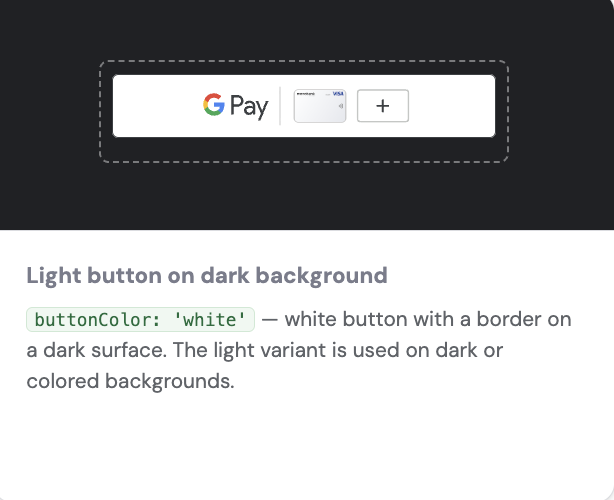
- modifying button colors beyond the allowed variants (black, white);
- adding overlays, shadows, or decorative elements;
- using the Google Pay logo outside the official button.
3. Relative prominence rules
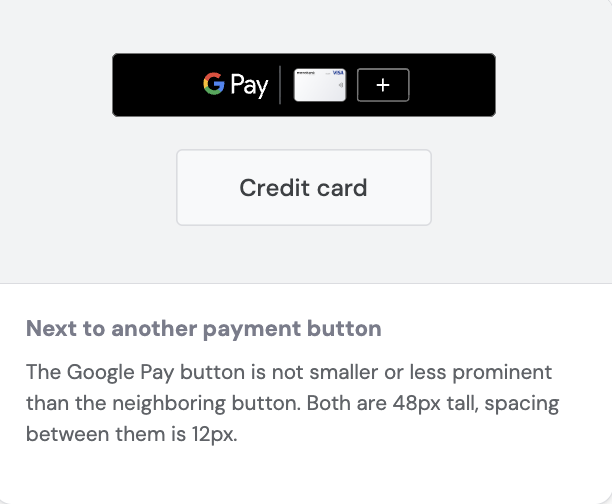
- The Google Pay button must have equal or greater visual prominence compared to other wallet buttons on the same page.
- Do not visually suppress the Google Pay button relative to other payment options.
4. Spacing and sizing
- Keep the required padding around the button on all sides.
- Do not place other interactive elements too close to the button.
- Minimum button size must match Google specifications.
The Google Pay button must comply with the official size and spacing requirements:
- Minimum clear space around the button — 8dp on all sides.
- Minimum button width — 90dp.
- For buttons with text (e.g., “Buy with Google Pay”) — minimum width 152dp.
- The button should be at least as large as other payment buttons on the page and must maintain its proportions when scaled.
For full details, refer to the official documentation: Google Pay Brand Guidelines
5. Do and Don’t
✅ Do
❌ Don’t
Use the official button via API
Create your own button with “Pay with Google Pay” text
Show the button only when eligible
Always show the button regardless of eligibility
Keep black or white button variants
Recolor the button to match your brand palette
Keep “Google Pay” in English
Translate “Google Pay” into another language
Match prominence with other wallets
Make Google Pay smaller than other wallet buttons
6. Text and wording rules
- The text “Google Pay” must always be in English, even on localized pages.
- Do not modify or abbreviate the brand name “Google Pay”.
- Do not use possessive forms like “Google’s Pay”.
7. Google review dependencies
During Google review, special attention is paid to:
- Button color and proportions
- Button prominence vs other wallets
- Non-English “Google Pay” text
- Showing the button on ineligible pages
See full requirements in the official documentation: Google Pay Brand Guidelines
Resolve all branding issues before submitting the Google Review Pack.
Google Pay button examples
Correct implementations

Static demo buttons (no authorization)


Correct implementations


Official Google Pay Brand Guidelines:
https://developers.google.com/pay/api/web/guides/brand-guidelines